| All About Client Funds | 
|

|

|

|

|

|
Showing Client Funds on the Statement
Billing Client Funds on the Statement
The client funds feature in Tabs3 Billing can be used to maintain a separate accounting of client funds for non-refundable retainers. These funds are kept separate from the client's accounts receivable balance and are generally deposited in the firm's general account. Other fund types such as trust funds, escrow funds, refundable retainers, etc., can be entered, but using a trust accounting system (such as Tabs3 Trust Accounting) is recommended to better comply with state bar recommendations.
Client funds information can optionally be printed on the statement. When included, the Client Funds section prints at the end of the client statement. The client's billing statement can include the client funds balance as well as detailed client funds activity. Tabs3 Billing can also bill the client for client funds if desired. Built-in flexibility lets you bill a one-time retainer until it has been paid or bill to replenish a pre-established minimum balance.
Transactions to a client funds account are made using the Client Funds program. Deposits, withdrawals and payments to the firm can be made to a client funds account.
Client funds are set up on the A/R & Fund Balances tab of the Client file. The area under Client Funds includes the Fund Balance and how the client funds will appear on the statement (if at all).
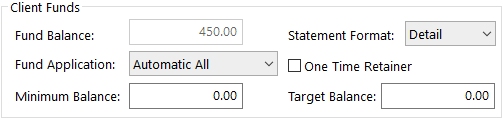
Setting up client funds can be as simple as entering a Deposit in Client Funds, or entering the initial balance in the Fund Balance when setting up the client. We recommend entering a Deposit for the initial balance in order to retain an audit trail.
If you will not be billing the client for client funds, skip the One Time Retainer, Minimum Balance and Target Balance fields. If you want funds transferred to the client's account automatically when a statement is generated, select one of the automatic options for the Fund Application.
A One Time Retainer check box can be used for billing a retainer until the full retainer has been received. When this check box is selected, the Minimum Balance field changes to a Retainer Amount field and the Target Balance field changes to an Amount to Bill field. Once the retainer has been paid, Tabs3 Billing zeros out the Amount to Bill and the client will no longer be billed for client funds. However, client funds activity will still print on the statement (provided a detail or summary Statement Format is specified).
Showing Client Funds on the Statement
You can configure the client so that the statement includes: 1) just the summary client funds balance; 2) detail client funds activity; or 3) no client funds information. This option is configured in the Client file on the A/R & Fund Balances tab in the Statement Format field.
The following is an example of a detail client funds section on the statement.
                       Client Funds

         Beginning Client Funds Balance               $1,000.00
10/06/21 Deposit                                       2,000.00
10/15/21 Funds transferred to account                   -500.00
                                                      ---------
         Ending Client Funds Balance                  $2,500.00
The following is an example of a summary client funds section on the statement.
                       Client Funds

Client Funds Balance                        $2,500.00
Terminology: All terminology is customizable. The "Client Funds" heading terminology used for both detail and summary formats is configured on Line 59 of Statement Terminology. The detail format terminology "Beginning Client Funds Balance" is configured on Line 61 and "Ending Client Funds Balance" is configured on Line 62. The summary "Client Funds Balance" terminology is configured on Line 60 of Statement Terminology. (Tip: If you don't want the Beginning Client Funds Balance line to print when the beginning balance is zero, enter an asterisk in the first character position of Line 61.)
Note: When a client is set up with a detail or summary client funds Statement Format, client funds will be shown on draft and final statements regardless of whether a statement or invoice format is used. All client funds transactions are shown on the statement regardless of date. If you want to exclude a particular client funds transaction, set the Status field for the client funds transaction to Hold.
Note: If the client has a client funds balance but no client funds activity or billable client funds, a statement will only print if the Include fund balance on statements for clients with only a fund balance option is selected in Tabs3 Billing Customization.
Note: A statement will be printed for a client when a client has a client funds balance but no work-in-process (provided the client is set up with a detail or summary client funds Statement Format).
Billing Client Funds on the Statement
Tabs3 Billing also allows you to bill the client for the client funds. This is useful for renewable retainers as well as for clients who do not pay the required retainer or escrow amount up front. When billing the client funds account, an additional line is printed following the detail or summary client funds information.
Terminology: The "Please Remit Amount to Replenish Client Funds" terminology for Renewable Retainers is configured on Line 63 of Statement Terminology. The "Please Remit Client Funds Balance Due" terminology for One Time Retainers is configured on Line 64 of Statement Terminology.
| The client funds account can be set up so it will always have a minimum balance in it. Whenever the balance goes below the minimum balance, Tabs3 Billing will calculate the amount required to replenish the account and include that amount in a message on the next statement for the client. | |
| Renewable Retainers | The following is an example of what the billing line for a renewable retainer might look like. In this example, the client is configured to maintain a minimum client funds balance of $2,000. |
                                 Client Funds

         Beginning Client Funds Balance                          $1,600.00

10/26/21 Deposit to Retainer - Check #8743                          400.00
10/29/21 Transfer of funds to firm for 10/29/21 statement          -250.00
                                                                 ---------
         Ending Client Funds Balance                             $1,750.00

         Please Remit to Replenish Client Funds Balance            $250.00
| If desired, a Billing Increment can be specified on the Options tab of Customization so that the calculated amount always rounds up to the nearest billing increment. | |
| One Time Retainers | If a client is to be billed for client funds until a specific amount has been paid, then you can configure the client as a One Time Retainer client. The full retainer amount is entered in the Retainer Amount and Amount to Bill fields. The amount in the Amount to Bill field is billed on the statement. Whenever the client pays toward the client funds, a deposit is entered which automatically reduces the Amount to Bill field by the deposit amount. Once the Amount to Bill field is reduced to zero, the client will not be billed for additional client funds. |
| The following is an example of what the billing line for a One Time Retainer might look like. In this example, the client is configured to pay a $5,000 one-time retainer and has already paid $3,000. |
                               Client Funds

10/25/21 Initial Deposit                                        $3,000.00
                                                                ---------
         Ending Client Funds Balance                            $3,000.00

         Please Remit Retainer Balance Due                      $2,000.00
In addition to the above sections printing on the statement for client funds, you can also include the client funds remittance amount with all other totals on the statement. In order to do this, the Combine All Totals on Statement check box on the Options tab in Statement Customization must be selected. When this check box is selected, Line 65 of Statement Terminology will print with the total amount the client needs to remit including any previous balance, current work, and amounts to remit for client funds and trust accounts. This line will print in addition to Line 63/Line 64 "Please Remit" line. The default terminology can be changed as desired. The following is an example of what both lines might look like on a statement. In this example, the "Retainer Balance Due" is the modified terminology for Line 64, and the "Please Remit Total Balance Due of" is the modified terminology for Line 65.
                              Client Funds

10/25/21 Initial Deposit                                        $3,000.00
                                                                ---------
         Ending Client Funds Balance                            $3,000.00

         Retainer Balance Due                                   $2,000.00

         Please Remit Total Balance Due of                      $4,650.26
Transactions to a client funds account are made using the Client Funds program. There are three Types of transactions: Deposits, Withdrawals and Payments to Firm.
| Deposit | A Deposit usually represents a payment from the client and is entered as a positive amount. A receipt can be printed for deposits. |
| Withdrawal | A Withdrawal usually represents a payment to a third party and is entered as a positive amount. |
| Payment to Firm |
A Payment to Firm represents a transfer of funds from the client funds account to the client's accounts receivable account. It can be entered manually or configured to occur automatically when a statement is generated. A manual Payment to Firm is entered as a positive amount. Besides reducing the client funds account, a Payment to Firm will generate a payment for current charges when a statement is generated, or allow you to create a work-in-process payment at the time of entry (provided WIP Payment is selected as the Fund Application type). Refer to the Payments to Firm section for more information. |
The Fund Balance is adjusted immediately after a client funds transaction has been saved. Transactions can be placed on hold which prevents them from appearing on the statement; however, the Fund Balance is still adjusted when a transaction on hold is entered.
When a final statement is updated, all client funds transactions on the statement are updated and are transferred to the archive files (excluding transactions on hold). Since these transactions are no longer in work-in-process, they are no longer accessible using the Client Funds program.
Payments to Firm involve two functions: 1) the withdrawal of funds from the client funds account; and 2) a payment to the client's accounts receivable account for current charges. Clients can be set up so that payments to the firm can be made automatically or manually. This is accomplished using the Fund Application field in the Client file.
Note: If one of the payments to the client's accounts receivable account is reversed or refunded, the client funds account balance and payment to firm transaction are also adjusted.
Automatic: You can set up a client's fund so that payments to the firm are automatically made when a client's statement is run. If the Fund Application is set to any of the Automatic options (i.e., Automatic All, Automatic Fee Pymt, Automatic Cost Pymt, Automatic Exp Pymt, or Automatic Adv Pymt), then a Payment to Firm is automatically generated for the amount of the specified type of work-in-process.
For example, let's say a client has a $10,000 fund balance and is set up as Automatic All. The client has total fees and costs of $3,000 in work-in-process. When a statement is run, a Payment to Firm will automatically be entered for $3,000 and the fund will show a $7,000 balance.
As another example, let's say a client has a $5,000 client funds balance and is set up as Automatic Fee Payment. The client has work-in-process consisting of $1,000 in fees and $50 in advances. When a statement is run, a Payment to Firm will automatically be entered for $1,000 (not $1,050) and the fund will show a $4,000 balance.
Note: Automatic payments will always use the client funds available balance, even if the balance was established by a deposit dated later than the statement date. For example, if a client funds deposit is entered with a date of 10/3 and a statement with work-in-process is generated with a date of 9/30, the deposit amount will still be used to generate an automatic payment.
Note: Because Automatic Payments to Firm are generated at the time a statement is run and updated, this type of payment is not shown in the Payment file.
Note: Automatic client funds payments will always appear on a statement, even when the Payments option is not selected on the Transactions tab of the Generate Statements window.
Note: When using automatic client funds payments, we recommend excluding work-in-process payments from a statement if the client has unapplied payments. This situation can cause inconsistencies when the automatic payment amount is calculated.
Note: A courtesy discount will apply to current fees billed before the automatic client funds payment amount is calculated.
Manual: If the Fund Application is set to Manual, then a payment from client funds is not automatically created when a statement is run. A Payment to Firm transaction must be entered manually using the Client Funds program in order to transfer funds from the client funds account to the client's accounts receivable for current charges. If a client is set to manual and no Payments to Firm have been entered at the time a statement is run, then no payments are generated for the client's accounts receivable balance for current charges. One advantage of entering Payments to Firm manually is that you can customize the description that will be used on the statement as opposed to the automatic Payment to Firm which uses the default description for the transaction code specified in Customization.
Note: Manual Payments to Firm are processed before any automatic ones.
Note: After saving a Payment to Firm with a Fund Application of WIP Payment, a Payment entry for the linked work-in-process payment will be displayed. If the Payment entry window is closed without saving, the payment's Fund Application will automatically be changed to Apply to All and a payment ledger record will be created later during the Update Statements process. The payment will apply to work-in-process first, and then apply to billed amounts according to the Payment Application settings stored in the Client file.
If the statement containing the payment is undone, the payment ledger record will be deleted, reversing GL journal entries will be posted, and the Payment to Firm will appear in the Client Funds window.
Whether the withdrawal portion of a Payment to Firm is handled automatically or manually, a payment transaction is automatically created for the appropriate work-in-process amount whenever a statement is run. The payment amount cannot exceed the fund balance.
The following example is a statement for a client that has paid a $2,000 retainer and has been set up with a Fund Application of Automatic All.
                         Advances

Filing Fee                                    200.00
                                              ------
Total Advances                                200.00

Total Current Work                            200.00

                         Payments

Funds transferred from retainer              -200.00

Balance Due                                    $0.00
                                               =====

                       Client Funds

Initial Deposit                             2,000.00
Funds transferred to account balance         -200.00
                                           ---------
        Ending Client Funds Balance        $1,800.00
How Payment Transaction Codes are Selected
The transaction code used for the automatically generated payment in the Payments section determines the description that will be used on the statement. The type of transactions to which Client Funds Payments are allocated determine which GL accounts will be used for the GL journal entries. The payment transaction code used depends on whether the Payment to Firm was an automatic Payment to Firm or a manual Payment to Firm.
Automatic: The Fund Application specified in the Client file determines the type of automatic payment to the firm and ultimately the payment transaction code. There are 5 different types of automatic payments to firm: fees, costs (combined expenses & advances), expenses, advances or all. The payment transaction codes for the various types of automatic withdrawals are specified on the Options tab of Customization as shown below. For example, if a client is configured with a Fund Application of "Automatic All," then the payment transaction code specified for "All" will be used (i.e., tcode #900 in the example shown below). The date used for the payment is the statement date.
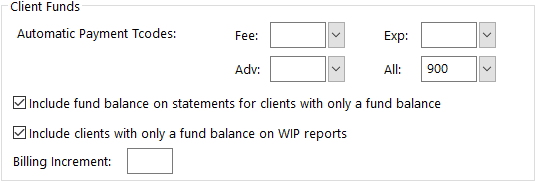
Note: If no payment tcode is specified, a standard description ("Client Funds Payment.") will be used and no GL integration will occur. (The "Client" in the standard "Client Funds Payment" description will be replaced with whatever terminology is specified for the Client Key Label on the Main tab of Customization.)
Manual: The payment transaction code used for a manual Payment to Firm is specified in the Tcode field in the Client Funds program. The description entered for the Payment to Firm is used in both the Client Funds section of the statement and the Payments section of the statement. The date used for the payment is the date specified for the Payment to Firm transaction.
Note: Once the payment is updated, it can be viewed via the Transaction File List. The payment will have a Source of "A" if it was generated automatically or a Source of "M" if it was generated based on a manual payment.
The following applies if Integrate with Tabs3 General Ledger is selected in Customization and Allow Posting of Client Funds Transactions is selected in GLS Integration Setup:
- Journal entries are posted provided: 1) GL integration is turned on in Customization; and 2) the posting method has been configured with a GL journal number and account number for both the debit and credit side of the journal entry. Additionally, for automatic client funds payments, the Automatic Payment tcodes for client funds payments must be configured in Customization; (even when Tabs3 Billing is not configured to integrate with GL based on tcode).
- GL journal entries are generated for payments based on the selected posting method; journal entries for withdrawals or deposits reverse the selected debit and credit accounts. Additionally, an optional accrual integration feature lets you configure Tabs3 Billing to allow journal entries to be posted to GL for client funds balances. (Note that it is important to use different accounts for accrual integration than those used for standard posting of GL journal entries, to prevent duplicate amounts from being reflected in GL.)
- The dates used for automatic payment journal entries is the statement date. The date used for manual payment journal entries is the date specified for the Payment to Firm transaction, or the statement date, whichever is later.
- GL journal entries are posted when a client funds transaction is saved. Additional journal entries are posted when a payment is allocated, such as when a final statement is updated. Journal entries are always posted in pairs. (See also: Source of GL Journal Entry fields.)
- If an error is encountered when Tabs3 Billing attempts to post the GL journal entries (e.g., the date of the journal entries is beyond the GL Date Restrictions), you will be prompted to print a GL Error Report. If this occurs when an automatic payment entry is added while updating a statement, the statement will be updated but the journal entries may need to be entered manually in GL, depending on the error or warning reported.
- The payment journal entries are posted to GL as Receipts with a Type of Client Funds (provided the debit account specified on the GL Account Table is configured as a bank account). This allows the receipt journal entries to be edited in GL when performing a bank statement reconciliation of the firm's account. If the client funds payment is a check from another account, you can change the Type to Check and enter the check number; whereas if it is an EFT from another account, you can change the Type to EFT.
- Reversing GL journal entries are created if a statement that had an automatic client funds payment is unupdated or reversed using the Payment Adjustment program.
- If you do not want journal entries made for client funds transactions, make sure the payment posting method is configured to exclude those allocations from creating GL journal entries. (See also: Disable GL Integration).
The following applies if you are posting accrual journal entries to GL for Client Funds balances:
- Journal entries can be made to GL for the total firm wide client funds balance. Alternatively, journal entries can be made to GL for the total client funds balance for each primary timekeeper's clients. These journal entries are posted when using the Post Tabs3/TAS Accrual Balances program in GL.
| See also: | Using Client Funds to Handle Retainers |
| How Credit Transactions Affect Automatic Client Funds Payments | |
| Printing a Receipt | |
| Knowledge Base Article R11340 - Tabs3 Client Funds GL Integration Overview |
 ) are registered trademarks of Software Technology, LLC.