| Statement Designer | 
|

|

|

|

|

|
 How to Access
|
|||||||||||||||||||||
The Statement Designer program lets you create customized layouts for your Tabs3 statements. You can control the placement of various fields from the Tabs3 Client data file, and add customized text, images and other layout elements to the statement. Once a page layout has been designed, it can be applied to one or more statement templates. The Enable Statement Designer Layouts check box in Print Setup must be selected in order for Statement Designer layouts to be used on a statement.
Click on the areas of the window shown below where  appears for help.
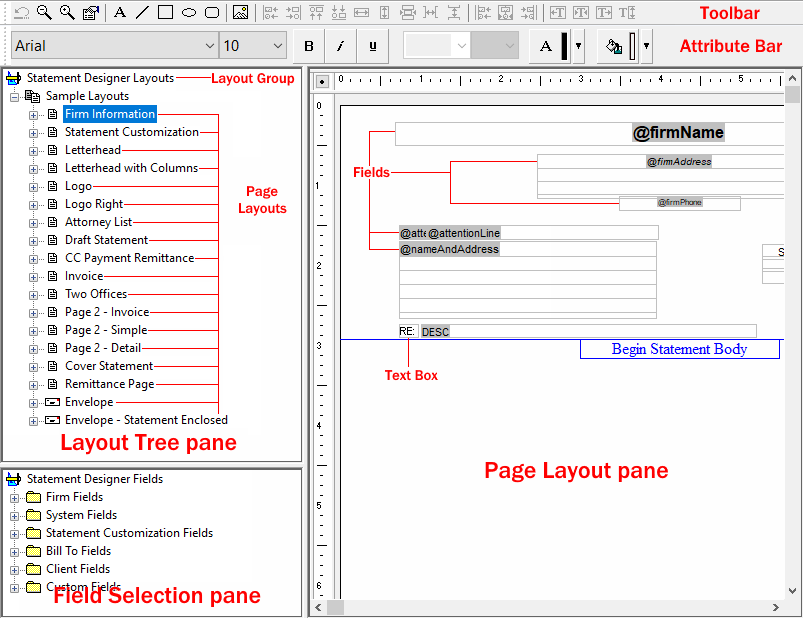
The Statement Designer window consists of the Statement Designer toolbar, the Statement Designer Attribute Bar, and three main panes, as indicated below.
In the Layout Tree pane, you can manage the layout groups and page layouts. Each layout group consists of one or more page layouts. Clicking the plus (+) symbol next to the name of layout group (e.g., "New Layout Group") expands the layout group to display the page layouts contained therein. Likewise, clicking the minus (-) symbol next to the name of an expanded layout group will collapse that layout group, hiding its contents from view. It is in the Layout Tree pane of the Statement Designer that you can add, rename, delete, import and export layout groups, as well as adding, renaming, or deleting individual page layouts.
The Field Selection pane is used to select and add fields from the Tabs3 and System Configuration data files to the current page layout. Clicking the plus (+) symbol next to a branch in the Field Selection pane (e.g., "Firm Fields") expands that branch to show the fields contained therein. Likewise, clicking the minus (-) symbol next to an expanded branch collapses that branch, hiding its contents from view. To insert a field into the current page layout, double-click the desired field or right-click it and select the Insert option. Click here to see a complete list of available fields.
The Page Layout pane is where you control the appearance of the current page layout. You can add,
remove, or modify various elements such as text
boxes, lines,
rectangles,
etc., as well as being able to control the page
layout properties. When you are finished making changes to one or more page layouts, click  to save your changes, or click
 and confirm that you want to save the changes.
| See also: | Working with Page Layouts |
| Adding a Field | |
| Working with Elements | |
| Element Properties | |
| Adding a Letterhead | |
| Statement Designer Page Margins | |
| Background Pages | |
| Statement Designer Right-Click Menu Options | |
| Tabs3 Statement Formatting Guide | |
| Knowledge Base Article R10923 - Frequently Asked Questions About Statement Designer | |
| Knowledge Base Article R10899 - Using Sample Layouts in Tabs3 Statement Designer | |
| Knowledge Base Article R10901 - Customizing the Sample Page Layouts Provided with the Tabs3 Statement Designer | |
| Knowledge Base Article R10944 - Printing Statements with Statement Designer Page Layouts | |
| Knowledge Base Article R11582 - Statements Information Resources |
 ) are registered trademarks of Software Technology, LLC.