| Hours | 
|

|

|

|

|

|
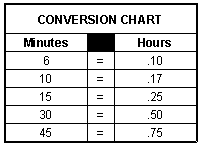
Tabs3 has two hours fields, Hours Worked and Hours to Bill. These fields allow you to easily track how much time a timekeeper actually worked on a transaction compared to the time that was billed for the transaction. This information can be useful to determine a timekeeper's productivity. Both hours fields are tracked on a decimal basis. The actual formula used for converting number of minutes to a decimal Hours field is: number of minutes divided by 60. Each field can have a maximum of 9,999.99 hours and a minimum of -999.99 hours (example: 1 hour, 15 minutes is entered as 1.25). A credit entry is made by preceding the number with a minus sign (example: -1.25).
| Hours Worked | The Hours Worked field is used to specify the number of hours worked for a fee transaction. When performing data entry, the number of hours entered in the Hours Worked field is used for the default number of hours in the Hours to Bill field. |
| Hours to Bill |
The Hours to Bill field is only displayed when using detail mode and is used to specify the number of hours to bill for a fee transaction. This field defaults to the number of hours entered in the Hours Worked field. When the Hours Worked and Hours to Bill fields are the same, changing the Hours Worked field automatically changes the Hours to Bill field. When performing data entry, the Hours to Bill field is skipped but can be accessed by clicking the field or pressing Shift+Tab until focus is in the field. When the number of hours in the Hours to Bill and Hours Worked fields are different, the difference between the two fields is considered a write-up or write-down of hours for that transaction. The number of hours in the Hours to Bill field is multiplied by the Rate to determine the Amount for the transaction. Once a transaction is saved, changing the number of hours in the Hours to Bill field displays a message allowing you to specify if you want the Amount field to be recomputed. Note: If both the Rate and Hours to Bill fields for a fee are 0.00, but the Amount is greater than $0.00, the Rate and Hours will not be shown for that fee when it is included on a statement. |
A popup calculator is available when editing any hours field.
The "<" and ">" keys can be used to increase or decrease the number by one hour at a time.
Note: When using Rapid mode, the Hours Worked field is the only hours field displayed. Although not shown in Rapid mode, the Hours to Bill field automatically defaults to the number of hours entered in the Hours Worked field.
Budget Hours
When a client's Warn if Budget Exceeded check box is selected, if the total Hours to Bill entered for a client (including both work-in-process fees and billed fees) exceeds the Budget Hours specified in the Client file, a warning message will be displayed indicating that the budgeted hours have been exceeded. Although the warning message is displayed, you will not be prevented from adding fees that exceed the budgeted hours.
Fee Timer
If you have used the Fee Timer to time an event, clicking the Elapsed Time button will add the elapsed time to both the Hours Worked and Hours to Bill fields and ask whether the calculated Value needs to be added to the Amount.
| See also: | Hours Fields on Reports |
| Write-Up/Write-Down Overview |
 ) are registered trademarks of Software Technology, LLC.