| QBXML Integration | 
|

|

|

|

|

|
When configured to integrate using the QuickBooks QBXML Format method of integration, Tabs3 posts information directly to QuickBooks whenever a client or cost is added. Conversely, running the Merge QuickBooks Data with Tabs3 program in Tabs3 will post all new or changed entries from QuickBooks to Tabs3. Tabs3 Cost transactions create Bill records in QuickBooks. Journal Entries for cost transactions are also automatically created. Additionally, after adding Tabs3 Payment transactions, the QuickBooks General Journal Entry window is shown, allowing General Journal Entries to be posted to QuickBooks. The following table summarizes the integration:
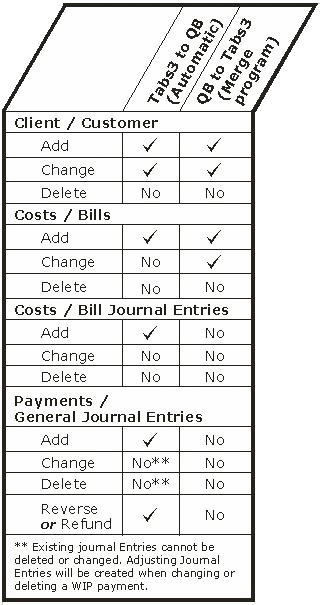
The integration can be controlled at the client level and at the transaction code level. The Integrate with QuickBooks check box on the Setup tab of the Client file must be selected in order for the client to integrate with QuickBooks. Additionally, the Integrate with QuickBooks check box in the Transaction Code file must be selected in order for transactions with that transaction code to integrate with QuickBooks.
A program called Send Tabs3 Data to QuickBooks, typically used only once, is also available for firms who want to post all Tabs3 Clients and Costs to QuickBooks. This program is provided specifically for firms who have been using Tabs3 and implement QuickBooks after the Tabs3 data files have already been established.
QBXML represents Intuit's QuickBooks eXtensible Markup Language which was developed by Intuit to provide data integration between QuickBooks and third-party programs. This method of integration allows more sophisticated integration where Tabs3 writes directly to QuickBooks data files thereby eliminating the need to enter data twice.
See also: What You Should Know Before Starting
QuickBooks / Tabs3 Field Mapping
The following Tabs3 files integrate with QuickBooks. Each of the following links includes detailed information regarding how the two-way integration works as well as how individual fields are handled.
Payments/General Journal Entry
Establishing a Certificate in QuickBooks
The very first time a program in Tabs3 attempts to write to the QuickBooks data file, a QuickBooks - Application Certificate window will be displayed (provided QuickBooks is open). You will be asked if you want to let this application (Tabs3 Billing) share data with your QuickBooks company file. Click the Yes, Always button. Clicking Yes, Always establishes the certificate for the current session as well as for subsequent sessions (i.e., closing Tabs3 and restarting Tabs3).
If QuickBooks is not open the first time a program in Tabs3 attempts to write to the QuickBooks data file, a message will be displayed giving you the opportunity to start QuickBooks so that a QuickBooks certificate can be created as discussed in the previous paragraph.
Accessing QuickBooks Data
Once a certificate has been established in QuickBooks, the next time you start Tabs3, a connection to the QuickBooks data file will be opened when Tabs3 attempts to write to the QuickBooks data file. The amount of time required to establish the connection will vary depending on your hardware and network. Our benchmark tests show it taking anywhere from 3 to 8 seconds. While the connection is being established, the following message will be displayed:
"Please wait while connecting to QuickBooks."
Once the initial connection is made for a session, subsequent writes to the QuickBooks data will be considerably faster. Our benchmark tests show most subsequent writes taking between 1 and 2 seconds.
Accessing QuickBooks Data without QuickBooks Running
We recommend having QuickBooks loaded whenever using Tabs3 because processing time is much faster. For example, in one test on a network, the processing time to add a client was less than 3 seconds when QuickBooks was loaded. Without QuickBooks loaded, the processing time required more than 2 minutes.
However, if you want to run Tabs3 without QuickBooks running, you must first configure QuickBooks to allow Tabs3 to login automatically.
Additionally, if QuickBooks is closed and processing time is very slow, you may receive the message "Could not get the name of the current QuickBooks company data file. Retry?". In this instance, it is necessary to open QuickBooks and then click Yes to retry.
| See also: | Integration Overview |
| Implementing the Integration | |
| QuickBooks Integration Types | |
| Establishing a Certificate in QuickBooks | |
| Accessing QuickBooks Data without QuickBooks Running | |
| Technical Notes & Error Messages | |
| Knowledge Base Article R11706 - QuickBooks Resources | |
| Knowledge Base Article R10884 - QuickBooks Remote Data Sharing | |
| QuickBooks Integration Guide |
 ) are registered trademarks of Software Technology, LLC.