| QuickViews Overview | 
|

|

|

|

|

|
QuickViews provide a powerful way of organizing and finding information in List windows, as well as the Statement Manager. QuickViews combine a filter, column layout, and sort option into a tab at the top of the list. When you change from one QuickView to another, you quickly change which records you see, the columns that are displayed, and the order in which records appear. You can customize the colors used for QuickViews. You can share QuickViews for all users as needed, or define them for yourself. Once created, you can select a QuickView at the top of the list, or via the Quick Clicks pane.
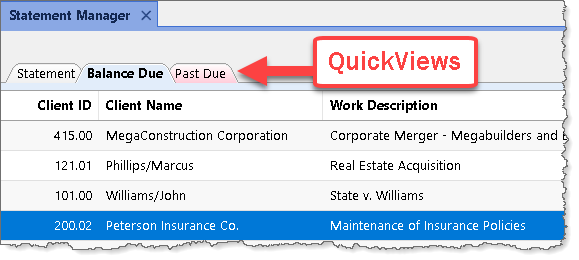
QuickViews are defined in the QuickView Editor, which can be accessed by clicking the Manage QuickViews option in the QuickView group of the Quick Clicks pane. Selecting the Manage QuickViews option opens the Manage Quick Clicks window.
Best Practices
Because QuickViews process so much information in large data sets, they run faster in the Platinum edition of Tabs3 Billing.
Arrange QuickView tabs so that the QuickViews most used are at the beginning. QuickViews can be arranged using drag-and-drop functionality in the Manage Quick Clicks window.
Use colors to easily distinguish between tabs. This allows you to more easily switch between tabs without hunting for what you need.
QuickViews can be shared for all users by selecting the Show for All Users check box. When sharing QuickViews, keep in mind that any changes made to the QuickView affects all users currently using the QuickView. User access rights can be assigned to prevent or allow changes to all shared Quick Clicks items, including QuickViews. These rights are assigned in System Configuration (File | Open | Access Profile | Tabs3| Utilities/View| Manage Quick Clicks Items for All Users). Denying access prevents users from making changes to shared items, but allows users to create their own non-shared QuickViews, filters, and column layouts.
| See also: | Adding, Changing, or Deleting a QuickView |
| QuickView Editor | |
| Quick Clicks Pane | |
| Manage Quick Clicks |
 ) are registered trademarks of Software Technology, LLC.