| Tree Control Allocation Groups | 
|

|

|

|

|

|
The information displayed in the Allocation Breakdown pane will change depending on what allocation group is selected in the Tree Control. The following provides examples of what the Allocation Breakdown pane will display when certain allocation groups are selected in the Tree Control.
Tree Control
In the Tree Control graphic image shown below, you can click on one of the lines when  appears to see what will be displayed in the Allocation Breakdown pane.
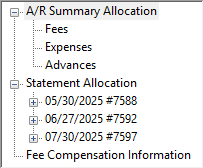
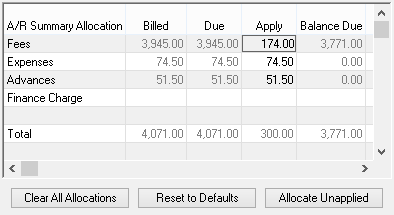
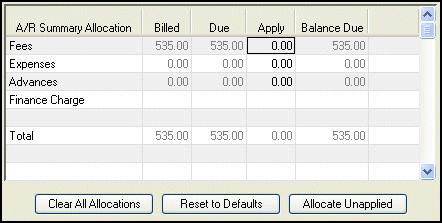
When A/R Summary Allocation is selected, the Allocation Breakdown pane shows all fees, expenses, advances, and finance charge billed to the client, as well as what is due. Amounts can be applied to any due figures on this pane. Sales tax is included in the Fees, Expenses and Advances.
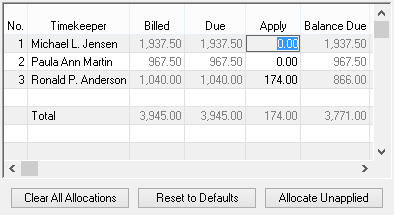
The Allocation Breakdown pane for Fee A/R Summary Allocation shows all fees billed to the client per timekeeper, any fee tax amounts, and what is due. The amounts shown here are gross fee receipts for timekeepers. Amounts can be allocated to any due figures on this pane.
| See also: | Sales Tax Allocation |
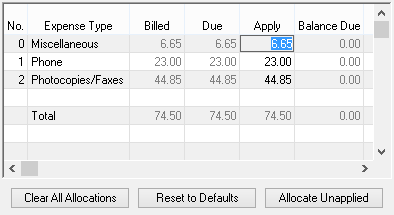
A/R Summary Allocation: Expenses
The Allocation Breakdown pane for Expense A/R Summary Allocation shows all expenses billed to the client by Cost Type, any expense tax amounts, and what is due. Amounts can be allocated to any due figures on this pane.
| See also: | Sales Tax Allocation |
A/R Summary Allocation: Advances
The Allocation Breakdown pane for Advance A/R Summary Allocation shows all advances billed to the client by Cost Type, any advance tax amounts, and what is due. Amounts can be allocated to any due figures on this pane.
| See also: | Sales Tax Allocation |
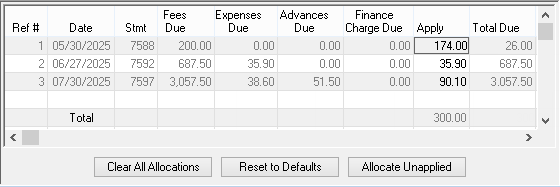
The Statement Allocation information on the Allocation Breakdown pane shows all statements with due amounts. The Statement Date, Statement Number, and due amounts for fees, expenses, advances and finance charge are shown. Amounts can be applied to any due figures on this pane.
Note: Statement Allocation breakdown is available only for clients who are configured for Receipt Allocation by Invoice.
Statement Allocation: 07/30/26 #7597
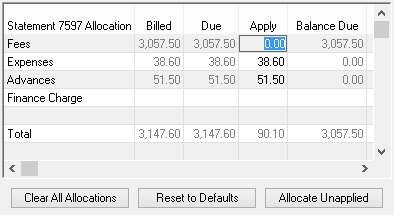
When a specific statement is selected, the Allocation Breakdown pane shows all fees, expenses, advances, and finance charge billed to the client on that statement, as well as what is due. Amounts can be applied to any due figures on this pane.
Note: Statement Allocation breakdown is available only for clients who are configured for Receipt Allocation by Invoice.
Statement Allocation: 07/30/26 #7597: Fees
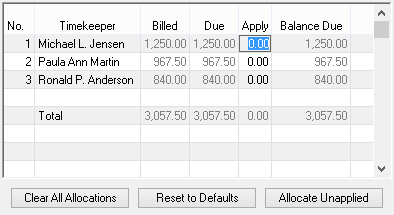
The Allocation Breakdown pane for fees on a specific statement shows all fees billed to the client on that statement, per timekeeper, any fee tax amounts, and due amounts. The amounts shown here are gross fee receipts for timekeepers. Amounts can be allocated to any due figures on this pane.
Note: Statement Allocation breakdown is available only for clients who are configured for Receipt Allocation by Invoice.
Statement Allocation: 07/30/26 #7597: Expenses
The Allocation Breakdown pane for expenses on a specific statement shows all expenses billed to the client on that statement, by Cost Type, any expense tax amounts, and what is due. Amounts can be allocated to any due figures on this pane.
Note: Statement Allocation breakdown is available only for clients who are configured for Receipt Allocation by Invoice.
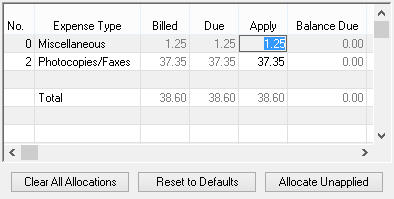
Statement Allocation: 07/30/26 #7597: Advances
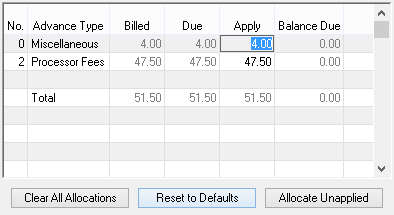
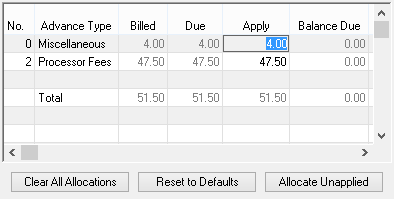
The Allocation Breakdown pane for advances on a specific statement shows all advances billed to the client on that statement, by Cost Type, any advance tax amounts, and what is due. Amounts can be allocated to any due figures on this pane.
Note: Statement Allocation breakdown is available only for clients who are configured for Receipt Allocation by Invoice.
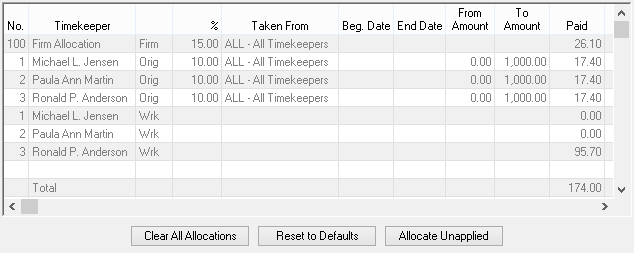
When Fee Compensation is selected, the Allocation Breakdown pane displays all allocations made based on the Fee Compensation Rules for the client. This includes the number, name, and type of the Fee Compensation Timekeeper, and the Percentage, Taken From, Date Range, Amount Range, and Paid amount. The amounts shown here are net fee receipts for timekeepers. Amounts are for information only; no changes can be made to any figures on this pane.
Sales tax is automatically allocated when a payment is allocated to the associated taxable fee, expense, or advance transaction.
When viewing the A/R Summary Allocation, sales tax is included in the Fee, Expense, and Advance amounts as opposed to being broken out separately.
When viewing the Fees, Expenses, or Advances breakdown under the A/R Summary Allocation group, sales tax is shown as a separate line item and cannot be edited (i.e., Fee Tax, Expense Tax, Advance Tax).
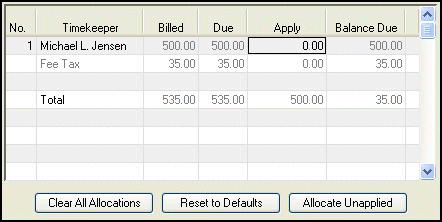
When changing payment allocations, the sales tax allocations are treated differently depending on which screen is used to change the allocations.
We will use the following example to demonstrate how this works. Let's say a fee transaction of $500 was billed at a tax rate of 7%, therefore a total of $535 was billed and due for fees. After entering a $500 payment, it will show the following:
- If you change the payment allocations on the A/R Summary Allocation group, the sales tax will automatically be allocated as part of the payment amount specified.
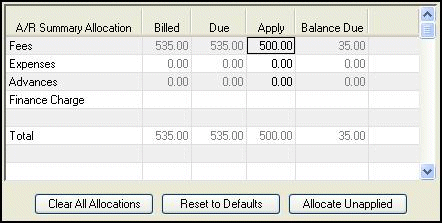
- However, if you change the payment allocations on the Fees, Expenses, or Advances breakdown under the A/R Summary Allocation group, the sales tax allocated will be
calculated in addition to the payment amount specified.
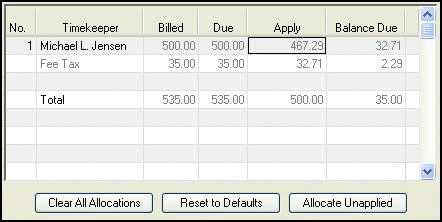
Note: If you attempt to change the allocated amount shown on the Fees, Expenses, or Advances breakdown under the A/R Summary Allocation group to include the sales tax (i.e., change $467.29 to $500.00 in the above example), additional money will automatically be allocated to sales tax, thereby potentially showing a negative Unapplied Amount in the Payment Information Pane. This must be corrected before the Payment Allocation window can be closed; you can do so by clicking the Reset to Defaults button.
Note: Multiple transactions with multiple sales tax rates can be included in the totals for each A/R Summary Allocation, the percentage allocated to sales tax may be an average of the tax amounts due to multiple transactions.
Note: If you do not want to assess sales tax for transactions, you must do the following: undo the statement which includes the taxable transactions, change the transactions to non-taxable, then run a new final statement and update that statement.
 ) are registered trademarks of Software Technology, LLC.