| Dashboard | 
|

|

|

|

|

|
 How to Access
Tabs3 Billing Location
Quick Launch
Dashboard
Menu
File | Home Page | Dashboard
Access Rights
Access Profile | Tabs3 Billing tab | Management Reports | Dashboard
R11818 - Access Rights
Exclusivity
Platinum
Non-Platinum
Click on the desired tab when  appears for information about that page view.
| My Actions | All Actions | Dashboard |
The Dashboard on the Tabs3 Billing Home Page provides an easy-to-use, graphical view of the firm’s standing. The Tabs3 Billing dashboard consists of four widgets:
Click a widget shown below where appears for additional help.
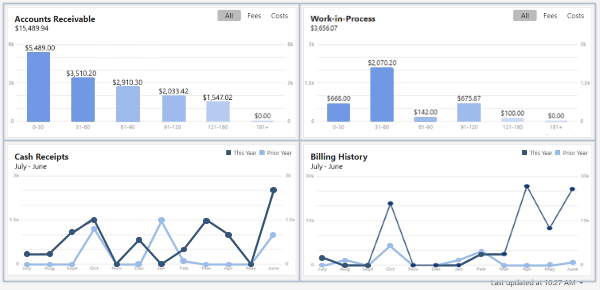
The last time the dashboard was updated is shown at the bottom right of the widow. You can refresh the dashboard at any time by pressing F5, or by clicking the down-arrow to the right of the last updated time and selecting Refresh Now. If it has been at least 7 days since the dashboard was last refreshed, a banner will be shown that includes a Refresh button. In the Platinum edition of the software, the dashboard automatically refreshes itself based on your selected Refresh Rate. You can set your Refresh Rate by clicking the down-arrow to the right of the last updated time, selecting Set Refresh Rate, and then selecting the desired refresh interval. You can disable the automatic dashboard update by selecting Disable Automatic Refresh. While the dashboard is being refreshed, a message will be displayed indicating the dashboard is loading.
Clicking the Print Graphs ( ) icon will open the standard Windows Print dialog box to print all of the widget graphs (including the selected filter).
In the Platinum edition, clicking the Dashboard Filter ( ) icon will open the Dashboard Filter window, allowing you to filter the widgets based on Timekeeper, Category, or Location. When a filter has been applied, a filter indicator will be shown at the top of the window for each filter item. When a filter includes more than five selections, they will be combined and hovering the mouse over the indicator will display the current filter options in a tooltip. Clicking the X next to any filter indicator will clear that filter, and clicking the Clear Filter button will remove all applied filters.
 ) are registered trademarks of Software Technology, LLC.