| Selecting Elements | 
|

|

|

|

|

|
You can select one or more elements in the Statement Designer. A selected element has a cross-hatch border with resizing handles. Dragging a resizing handle will resize the element. When multiple elements are selected, all selected elements will have a cross-hatch border, but only the most recently-selected element will have resizing handles. If you move, delete, cut, paste, or align an element when multiple elements are selected, all selected elements will be likewise affected.
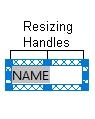
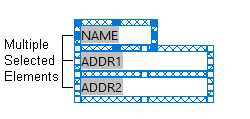
 To Select an Element
- Click anywhere in the element.
To Select Multiple Elements
- Hold down the SHIFT key.
- While holding the SHIFT key, click each element you want selected.
Note: When multiple elements are selected, the last element selected will be the element that has the focus on it. This element will have resizing handles. To place focus on a different element, hold down the SHIFT key and click the element. You may need to change focus when using the alignment or equalization toolbar buttons.
Note: Once multiple elements are selected, you cannot deselect individual elements. Instead, you must start over and reselect the desired elements.
To Lasso Multiple Elements
- Click the upper left corner of the area that includes the elements you want to lasso. Be sure to click in the background rather than on an element; otherwise, you will simply be selecting an element.
- While holding down the mouse button, drag the mouse to the lower right corner of the area.
- Release the mouse button. All elements that fit within the lasso area will be selected. If a portion of an element exceeds the lasso area, the element will not be selected.
| See also: | Moving or Resizing an Element |
 ) are registered trademarks of Software Technology, LLC.